What to send us — and how to make sure it prints right.
A short, jargon-light guide to file formats, resolution, color, and the little things that decide whether your finished product looks crisp or fuzzy.
The 30-second version
- If you have a vector file (.ai, .pdf, .eps, .svg) — send that. We can scale it to anything.
- If you don’t — send the largest, sharpest version of your logo you can find. PNG with a transparent background is best, ideally 2,000+ pixels wide.
- If you don’t have a logo at all — say so when you request your quote. Our designers can build one for you, often at no charge for orders over $500.
- Convert text to outlines before exporting if you’re using a custom font. Otherwise we may have to substitute it.
Vector vs Raster — the only file-format thing you really need to know
Almost every artwork problem we run into traces back to one mistake: someone sent a raster file when we needed a vector one. Here’s the difference, in one picture.
.ai · .pdf · .eps · .svg
Stays crisp at any size — postage stamp or billboard. Built from math, not pixels, so we can scale, recolor, and reposition without losing quality.
.png · .jpg · .gif
Made of fixed pixels. Looks fine at the size it was saved, gets blocky if we have to enlarge it. Send us at least 300 DPI at the printed size — see the math below.
Don’t know which kind you have? Open the file and zoom in to 800%. If the edges stay crisp, it’s vector. If you start seeing pixels, it’s raster.
Resolution — the “300 DPI” rule, in plain English
For a printed image to look sharp, it needs roughly 300 dots per inch at the size it’s actually printed. That second part is where most people trip up.
The screenshot of a logo from a website is almost always too small — websites display at 72 DPI, so the image you saved is roughly 4× smaller than it needs to be for print. If a logo lives anywhere as a vector file, send us that instead.
Color modes
Your monitor mixes color with light (RGB). Print presses mix it with ink (CMYK). They don’t cover the same range, so a screen-bright orange may print a notch duller than what you see on your laptop.
Best for print
Cyan + Magenta + Yellow + Black. The actual ink mix presses use. If your designer can deliver in CMYK, do it — what you see is closer to what you'll get.
OK, with a caveat
Red + Green + Blue. The native mode of your screen. We accept RGB and convert it for you — but very saturated blues, greens, and oranges may shift slightly.
For exact brand color
If your brand has Pantone numbers, send them with your artwork. For screen printing and embroidery we can match Pantones precisely. For digital methods, it's a close approximation.
Fonts
If your design uses a font we don’t have installed, your text will silently substitute to a default — which is rarely what you want. There are two clean ways to avoid it.
Option A — Convert text to outlines
In Illustrator: select your text and run Type → Create Outlines. Your text becomes shapes, locked to look exactly the way you designed it.
Option B — Send the font file
Include the .otf or .ttf file with your artwork — but only if you have the right to redistribute it. Adobe Fonts and most commercial licenses don’t allow this, so outlines (Option A) is usually safer.
Decoration-method specifics
Different printing methods have different quirks. Here’s what each one likes — and what to avoid.
Screen Printing
Bold designs with 1–6 solid colors
Photographic gradients · tiny details · subtle drop shadows
Embroidery
Logos with bold shapes and limited fine detail
Gradients · thin strokes under 1mm · text smaller than 5mm tall
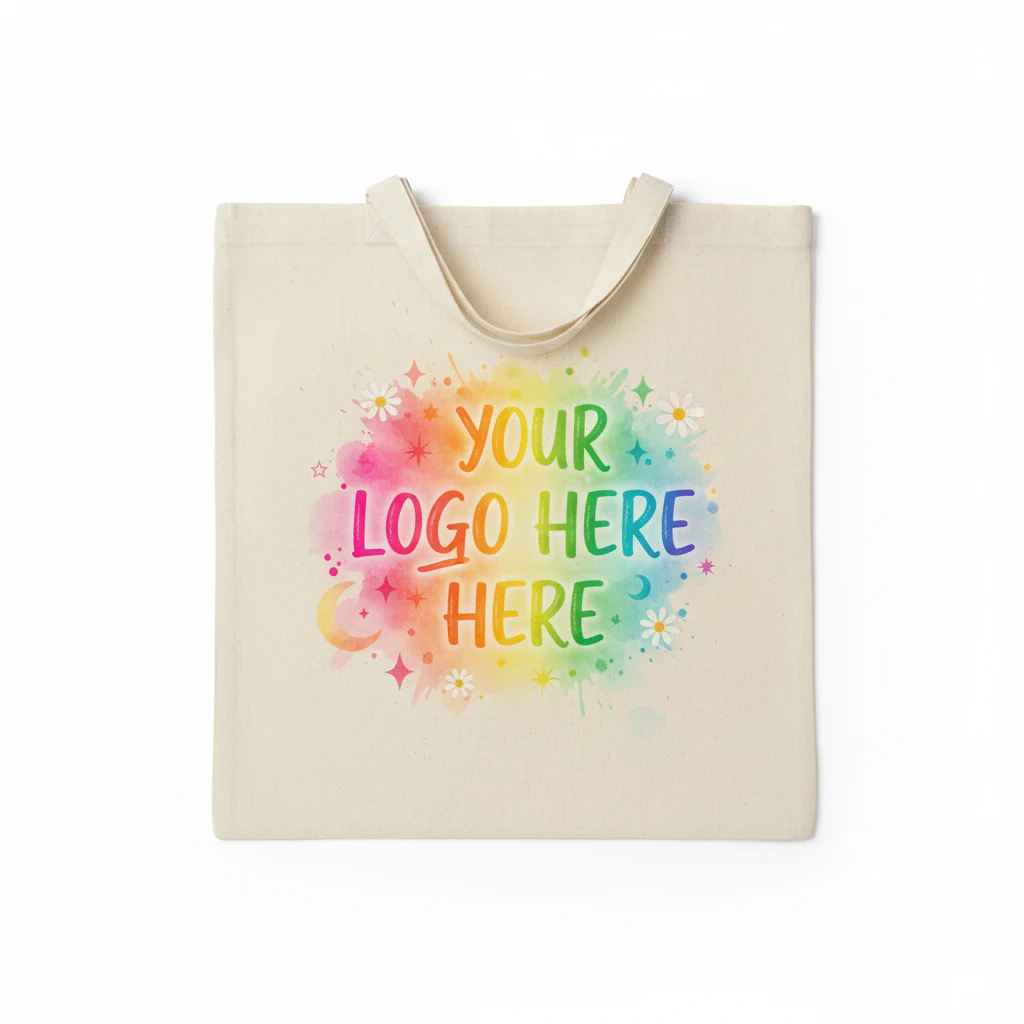
DTG / Sublimation
Photographs · gradients · unlimited colors · fine detail
Pure white on dark fabric (looks duller than screen print)
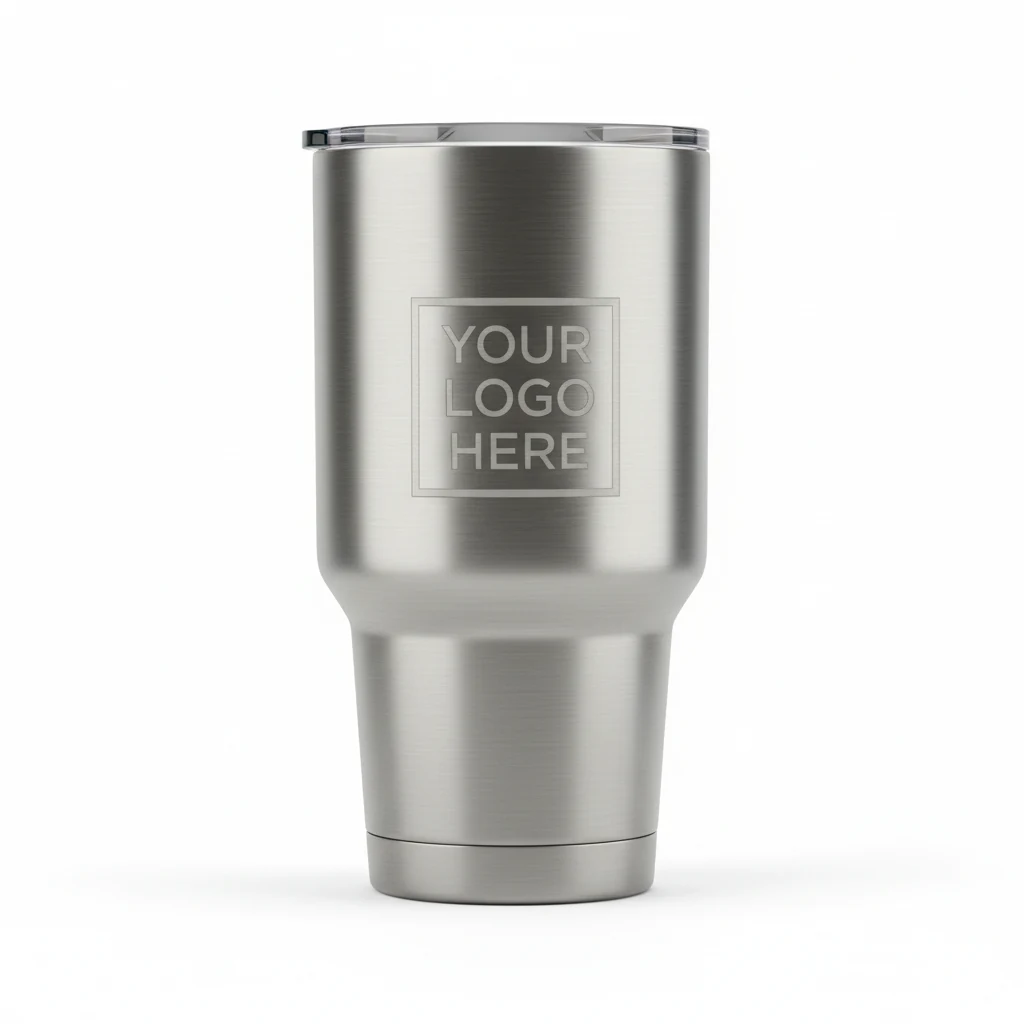
Laser Engraving
Single-color marks on metal, wood, leather, glass
Color of any kind · gradients · halftones
Bleed and safe area — for items that get trimmed or wrapped
Cutting and printing have small mechanical tolerances. To make sure background colors run all the way to the edge — and important elements don’t get clipped — designs need a little extra room.
We’ll send you a product-specific template the moment we know what you’re ordering — so you don’t have to do this math.
Common mistakes that delay orders
- Sending a logo screenshot from a websiteWeb logos are 72 DPI — about 4× too small for clean print. Find the original file or ask us to redraw it.
- A “vector” PDF that’s actually a raster image inside a PDFA PDF can wrap a JPEG. Open it in Illustrator and check — if you can’t click on individual paths, it’s raster.
- Embedded fonts you don’t have a license to redistributeConvert text to outlines before sending. It’s a 3-second fix.
- White-on-light or black-on-dark designsThey’ll print, but they won’t be visible. We’ll always flag this on your mockup.
- Using artwork that isn’t yoursTrademarks, celebrity images, and copyrighted characters require documented authorization. See our Intellectual Property & Artwork Policy for what we can and can’t produce.
Don’t have artwork yet?
Tell us what you’re trying to make. Our designers will mock something up for you before you commit to anything — often at no charge for orders over $500.